
Resources Centre
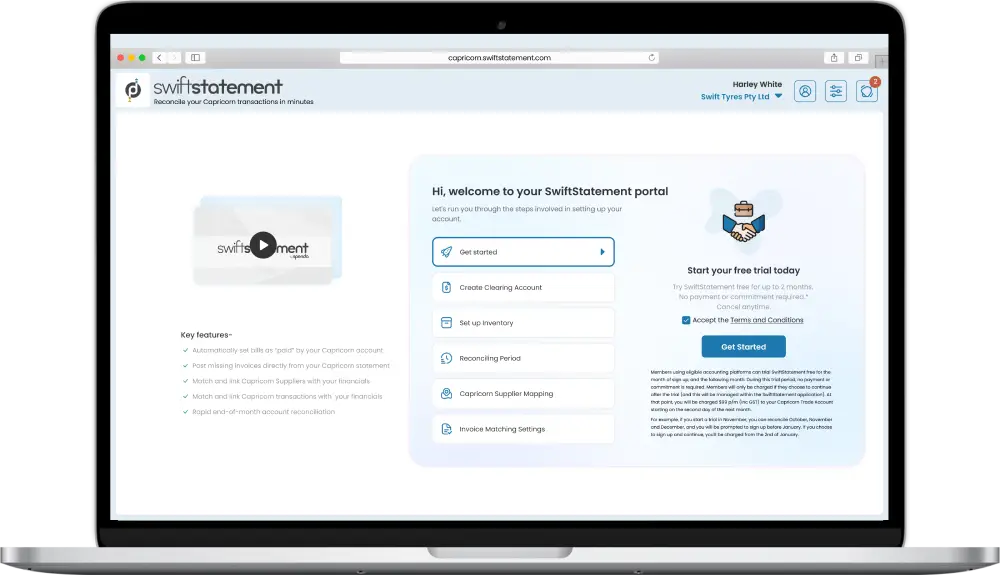
See how SwiftStatement works with our interactive demo
How to use SwiftStatement
Set up
Customisation
Reconciliation
Invoice Upload
Getting started with SwiftStatement
How to create inventory items in Xero
How to create inventory items in MYOB
Mapping a Supplier in SwiftStatement
Using SwiftStatement to write invoices to your financials
Using SwiftStatement to match and link Capricorn transactions
How to override a default posting inventory item
How to change Supplier mapping
How to reconcile your payment to Capricorn
How to place transactions on hold
How to remove transaction on hold to match and link
How to manually adjust the posting tax amount
How to dismiss a transaction
Using the ‘Add Invoice’ Feature
Frequently asked questions
Introduction to SwiftStatement
What is SwiftStatement?
SwiftStatement is a tool in Spenda’s Accounts Payable module that automatically matches payments with invoices for Capricorn Society Members. It connects directly to cloud accounting software, making sure everything is accurate, saving time, and improving financial management.
Who can use SwiftStatement?
Currently, only Capricorn Society Members that have Xero or MYOB as their financial adaptor can use SwiftStatement.
I use a different financial adaptor other than Xero or MYOB, can I use the software?
No. Currently, our SwiftStatement solution can only integrate with Xero and MYOB. There are plans to make SwiftStatement compatible with other software in the future.
What invoices are shown in SwiftStatement?
Only invoices linked to the customer’s Capricorn Trade Account are shown in SwiftStatement and will not show external suppliers’ invoices.
What is the product trying to solve? What are the product benefits?
SwiftStatement automates the end of month book balancing process, reducing hours of manual work to just minutes. It ensures accuracy, minimises human error, and makes reconciling quick and easy.
By using SwiftStatement, will I need to change the way I process invoices?
Not at all. SwiftStatement is designed to be flexible and adaptable to your existing practices. We will handle the reconciliation, and we can assist with integrating invoices into your accounting system.
Getting Started (Onboarding)
Onboarding
Can I book an assisted onboarding?
Yes, absolutely! Our onboarding process makes it super easy for you to get fully set up with SwiftStatement at your own pace. Here’s how:
1. Click HERE to access SwiftStatement
2. If you are not already logged in, log in using your myCAP Member number and password
3. Follow the on-screen instructions to complete your onboarding
However, if you need assistance at any point, you can use the Live Chat function or book an assisted onboarding through the SwiftStatement portal.
What does an assisted onboarding look like?
An assisted onboarding involves screen sharing your desktop with your Xero/MYOB over Microsoft Teams. Our Onboarding Specialist will guide and assist you in configuring settings in your Xero/MYOB to allow SwiftStatement to match, link, or post transactions.
By the end of the session, you’ll:
• Have SwiftStatement set up and ready to go
• Be able to utilise SwiftStatement for all your reconciliation needs
A follow-up meeting may be scheduled by our Onboarding Specialist to answer any questions or issues you may have encountered during usage since the onboarding.
I’m very busy. How long will this take?
The onboarding process is straightforward and typically takes no more than 30 minutes. It includes initial configuration of SwiftStatement to integrate with your Xero or MYOB account, as well as a brief walkthrough of how to use the tool. Once set up, reconciliation becomes an automated task with minimal manual effort required.
Creating a Liability Account
What is a liability account?
A liability account is an intermediary account used for containing unallocated transactions, so you can accurately match and reconcile discrepancies and ensure that entries are accurate as and when required.
Why do I need to set up a liability account for SwiftStatement?
A liability account will allow you to filter invoices linked to Capricorn into a single location for quick and simple reconciliation.
Rounding Tolerance
What is a rounding tolerance?
Rounding tolerance is a small, allowable difference in cents that you accept when reconciling invoices. This means you permit minor discrepancies within this range to ensure the invoices match up correctly.
For example, an invoice entered into your Xero/MYOB for $100 – when the original invoice was $99.99 – would require a rounding tolerance of $0.01 for SwiftStatement to automatically post the transaction.
What does it mean when the screen says, “How would you like us to post rounding adjustments”?
The system is asking you to choose the account where these rounding discrepancies should be posted. This is typically a rounding account that you’ve set up in your accounting system.
Why is this important? The rounding adjustments need to be recorded in an account to ensure the books stay balanced and reflect the true financial position. By selecting the correct liability account, you ensure that any rounding discrepancies are properly accounted for without affecting the rest of your financial records.
Why do I need to set a rounding tolerance?
It allows for minor variances of a trivial amount to automate transaction posting, ensuring you wouldn’t need to manually match statements.
Why does SwiftStatement need to create a rounding account for me?
The rounding account allows for variances from your supplier invoice and what you’ve entered into your books to be automatically routed into the rounding account.
Having a separate rounding account in your Chart of Accounts allows you to specifically see if invoice rounding (either positive or negative amount) is affecting your book balancing.
If you are using Xero, a single rounding account for both rounding income and expenses would have already been created for you. If you are using MYOB, you will have to create two separate rounding accounts for ‘Other Income’ (8-11XX) and ‘Other Expenses’ (9-11XX).
Can I change my rounding tolerance or add a new one at a later date?
Yes. Rounding tolerance can be adjusted within SwiftStatement at any time. The default is set to $0.00.
What are the two types of rounding accounts and how are they different?
Rounding expenses: These are variations in the amounts of purchases when comparing your supplier’s invoice with what you’ve entered into your accounting software (like Xero or MYOB). The amounts may vary slightly due to rounding differences.
Rounding income: These are variations in the amounts of sales when the total amount on the invoices you send out differs slightly from what the customer pays, again due to rounding differences.
Where do the rounding accounts appear in my Xero/MYOB?
Rounding accounts should appear in the Chart of Accounts.
For Xero, both rounding income and expenses are under the account code ‘860’.
For MYOB, your created rounding accounts should be under:
‘8-11XX – Other Income’ and ‘9-11XX – Other Expenses’
You’ll also be able to enable the account to appear on your Dashboard for easier access.
Inventory
Why does Spenda create inventory items for me?
We do this so that when we match and link from SwiftStatement we can associate an inventory item on the Capricorn Statement with an inventory item in Xero/MYOB against that Supplier. This is only needed when Members use SwiftStatement to write new invoices into Xero/MYOB.
Can I change the inventory items later within SwiftStatement or do I need to change them in my accounting system?
You can change the default inventory item linked to suppliers within SwiftStatement.
Navigate to ‘Settings’ > ‘Supplier Management’ > Change the inventory item for a supplier under ‘Default inventory posting behaviour’ to your preference.
You’ll also be able to make specific inventory item changes such as:
• Item codes (inventory code e.g. NSTP for Cap Non-Stocked Parts)
• Inventory items (Name)
• Purchase Account
These changes to inventory items can also be made in Xero/MYOB but requires you to click ‘Refresh Data’ on SwiftStatement to force the updates.
Capricorn Supplier Mapping
What does Supplier Mapping mean?
Supplier Mapping involves a one-time linking of invoices to their respective suppliers. After it’s been mapped, any additional invoices from those suppliers will automatically be linked to them and entered into your Xero/MYOB for you.
If you need to make any changes to an existing supplier, this can be done in the ‘Supplier Management’ option in SwiftStatement or through your Xero/MYOB supplier list.
Changes made in Xero/MYOB will require you to click ‘Refresh Data’ in SwiftStatement to force the update through.
What is it telling me to do in the Capricorn Supplier Mapping step?
This step will link Capricorn as the main supplier for your account. It will import all the transactions linked to Capricorn into SwiftStatement.
If you already have Capricorn as a supplier in your Xero or MYOB:
- Hit ‘Refresh Suppliers’ and wait for it to update
- Type in “Capricorn” in the search box and click the search icon
- Capricorn should appear, and you will need to select it.
If Capricorn isn’t listed, click ‘Create new supplier’ and fill in the boxes below as:
First Name: Capricorn
ABN/NZBN: 29008347414
(Note: Any spaces in the ABN/NZBN will not be accepted)
What are prefixes and suffixes?
Prefixes and suffixes are simply characters added to the beginning (prefix) or end (suffix) of an invoice reference number. They help identify, organise, or modify the number for specific purposes.
In SwiftStatement, you can set a custom prefix or suffix for invoices and credit notes. This way, SwiftStatement can automatically recognise these invoices, making it easier to process them without needing manual matching. This helps streamline your workflow and reduce errors.
What are some examples of prefixes and suffixes?
For example, in Workshop Management Software, when a purchase invoice is entered, the system might add a prefix like “WMS-” to the reference number, transforming it from “INV00076” to “WMS-INV00076.” This helps differentiate the transaction and allows the software to integrate with accounting systems like Xero or MYOB.
In other cases, such as credit notes, a prefix or suffix of some form such as ‘CR-INV1234’ or ‘INV1234-CR’ may appear to differentiate a regular invoice and credit notes.
Customising SwiftStatement to your preferences
Prefixes & Suffixes
How do I know if I need to add prefixes and suffixes? Where do I find them?
If a reference number contains characters that prevent auto-matching and requires manual matching in SwiftStatement, you may need to add prefixes or suffixes. This will allow future invoices or credit notes with the same reference format to auto-reconcile without manual intervention.
This can be configured during the assisted onboarding if required.
To add prefixes or suffixes manually:
1. Go to Settings in SwiftStatement
2. Select Invoice Matching Settings
3. Under Invoice and Credit Note Matching Settings, enter your preferences for invoices and credit notes
Rounding Tolerance
How do I set a rounding tolerance?
Go to Settings > Invoice Matching Settings
You can refer to Getting Started > Rounding Tolerance above for further details.
Completing your reconciliation cycle
Initial Set Up
What is “Information Required”?
This requires you to link the invoices with their respective suppliers.
If the supplier already exists in your Xero/MYOB:
- Click ‘Refresh suppliers’ and search for the supplier
- Select the supplier and hit next
If not:
- Click ‘Create new supplier’
- Fill in the ABN/NZBN
- Click ‘Next’
Now, it’ll ask you to ‘Select inventory behaviour’. To do this, click on the arrow in the dropdown box and select the appropriate inventory item for the invoice. Click ‘Continue’.
Any additional invoices from those suppliers will automatically be linked to them and entered into your Xero/MYOB for you.
An Inventory or Supplier was incorrectly mapped/linked
If an inventory item or supplier was incorrectly mapped or linked, you can easily fix it in SwiftStatement.
Just go to Settings > Supplier Management. From there, you can change the supplier under ‘Supplier Posting Behaviour’ or update the inventory under ‘Default Inventory Posting Behaviour’.
Can Capricorn see any invoices outside of my Capricorn Trade Account?
No, you won’t be able to see non-Capricorn invoices. All your invoices will be read into SwiftStatement but any transactions that are not linked to your Capricorn Trade Account are not visible to Capricorn Society.
Can I choose a different purchase account for inventory postings?
No, you can’t choose a different purchase account for inventory postings once it’s set. However, you can assign a new account number or code for the inventory item if needed.
What if I want to pull in previous months data into SwiftStatement outside of the previous or current month?
You will only be able to access the current or previous month’s data.
If you would like to access additional data outside of those months, contact us on the following:
Phone: 1300 682 521
Email: support@spenda.co
Live Chat via Capricorn SwiftStatement Portal
When I create a new supplier in SwiftStatement, does it add it to my Xero/MYOB?
Yes. A new supplier created through SwiftStatement’s “Create new supplier (name of supplier)” option will add it to your Xero/MYOB.
Initial Posting
What is “Post as new”?
When you first finish linking the invoices with their respective suppliers, you are now able to post them over to Xero/MYOB by clicking the ‘Post as New’ button.
Additionally, you can select multiple or all using the bubble icons on the left-side of the invoices.
Once you do this, you will not need to manually post these invoices as new again.
Can I make changes to invoices once they have been posted to the Capricorn Liability account?
No. Make sure the invoice is correct before you ‘Post as New’ as this action can’t be undone.
Using SwiftStatement
Some of my transactions have disappeared, where did they go?
This means the transactions you’ve entered into Xero/MYOB automatically matched with what Capricorn has recorded and are therefore automatically entered into the trade account.
How do I manually match transactions?
If a transaction needs manual matching, click ‘Manually Match’ on the right-hand side of the invoice under ‘Action’ in SwiftStatement and it will open the Capricorn invoice.
Generally, an invoice will need manual matching if SwiftStatement can’t find:
• A matching Reference Number or Invoice Number
• An exact total amount.
This can usually happen when details of the invoice may have been entered incorrectly and need adjustments.
You can enter the total amount of the invoice into the search bar on the right and select the invoice you think matches. In some cases, the invoice may have a slight variance in the total amount.
If the reference number/supplier doesn’t match, you would need to go back to Xero/MYOB to edit the invoice.
A transaction is missing from Xero/MYOB
On the right-hand side of the invoice under ‘Action’, you can select ‘Post as New’ on the corresponding transaction that’s missing to manually process it into your Xero/MYOB.
Can I make our end of month payment to Capricorn through SwiftStatement?
Not at the moment. SwiftStatement is designed to speed up and simplify the reconciliation of your Capricorn Statements. Invoice payments will still need to be made using your usual method.
I have a transaction showing from Capricorn that isn’t showing in SwiftStatement?
There may be times where a transaction from Capricorn isn’t appearing in your SwiftStatement account. If this occurs, please make sure you check that the invoice isn’t already posted in Xero/MYOB.
If the invoice isn’t already posted, you will need to contact our Support Team to confirm if this is an issue with syncing to Xero/MYOB. When you contact us, please confirm the following:
- Where can you see the transaction? (i.e. On a physical statement or in your myCAP portal?)
- When did this transaction appear in your Capricorn statement?
- Can you provide proof of the transaction, such as a screenshot or reference number?
Once we have received this information we will need to escalate the issue for further investigation.
Contact our Support Team via the following options:
Phone: 1300 682 521
Email: support@spenda.co
Live Chat via Capricorn SwiftStatement Portal
What happens if I add a new Supplier in my Xero/MYOB, does it read data back and forth, so both are up-to-date or are the data sets kept separate?
Information between your Xero/MYOB and SwiftStatement is updated daily, so if you’ve created a new supplier in Xero/MYOB, you’ll be able to see them in SwiftStatement when you search for a supplier to link to an invoice.
If it does not appear in your supplier mapping list, you might need to manually refresh the information sync in SwiftStatement.
Invoice Upload
What is Invoice Upload?
The Invoice upload feature allows users to submit supplier invoices in PDF or JPEG format, including those from suppliers not connected to the platform. These invoices are automatically processed, reconciled, and paid – all in one central location.
What happens to invoices from suppliers that aren’t Preferred Suppliers?
Invoices from non-Preferred Suppliers can still be uploaded to SwiftStatement in PDF or JPEG format. Once uploaded, they are processed in the same way as other invoices – allowing you to review, reconcile, and pay them within the platform. This means you can manage all supplier invoices centrally, even if the supplier isn’t connected to the system.
Can the invoices I upload reconcile with items on SwiftStatement once they’ve been entered?
Yes. If the uploaded invoice matches an item on your Capricorn Statement, it will be automatically reconciled and marked as paid.
If it doesn’t match, it will still be processed as a finalised invoice, but without a payment due amount.
Can it read scanned documents?
Absolutely. The system can read digital invoices, scanned documents, and even clear photos of invoices.
You can upload multiple invoices in bulk. There’s no strict limit, but upload speed may vary depending on file size.
What file formats are supported?
Currently, PDF and JPEG formats are supported.
Do I need to manually enter invoice details after uploading?
No. The system automatically extracts key details like supplier name, invoice number, date, and amount.
Is it secure?
Yes. All uploaded documents are encrypted and processed in compliance with data protection standards.
Can I edit invoice details after upload?
Yes. You can review and manually adjust extracted details before finalising the invoice.
Will I be notified if an invoice fails to upload or process?
Yes. You’ll receive a notification with details on any failed uploads and guidance on how to resolve the issue.
Subscription
Why should I sign up this month?
SwiftStatement can significantly reduce the need for manual reconciliation every month. You’ll also be eligible for a free trial to use SwiftStatement for the month you sign up as well as the prior month, so you can test it out and see if it fits your needs.
Is there a free trial period available for SwiftStatement?
Yes, you can trial SwiftStatement for free for the month you sign up and the prior month.
You will then be charged $99 p/m (including GST) to your Capricorn Trade Account starting on the second day of the month following sign up unless you cancel beforehand.
For example, if you start a trial in November, you can reconcile October, November and December, and you will be prompted to sign up before January. If you choose to sign up and continue, you’ll be charged from the 2nd of January.
What are the benefits of this? Why should I continue?
More time for your business: Link your Capricorn Preferred Suppliers once, and SwiftStatement will reconcile matching transactions directly to your accounting system.
Seamless invoice matching: Automatically matches invoices in your system, catching data errors and working with document capture or workshop software.
Easy posting for missing transactions: Highlight and post missing transactions to the correct account individually or in bulk.
Improved business insights: Reconciling each transaction from your Capricorn Trade Account gives you more insight and understanding of your spend with Preferred Suppliers.
When will I be charged?
An invoice is sent out on the 5th of every month, and you will have 7 days from that date to pay it.
How am I charged?
An invoice from Spenda will appear in your SwiftStatement on 5th of every month. You will be required to link Spenda as the supplier by clicking ‘Information Required’ on the right-hand side of the invoice under ‘Actions’. Afterwards, any subscription payments would be automatically posted to your Xero/MYOB.
Here’s the ABN for Spenda Limited: 67099084143
Other items
All transactions are displaying as post as new
This can be commonly narrowed down to an incorrect Supplier being selected. You can confirm this by reviewing the invoice in Xero/MYOB.
If the invoices have been confirmed to be correct, please contact our support team via the following options:
Phone: 1300 682 521
Email: support@spenda.co
Live Chat via Capricorn SwiftStatement Portal
A “Resource not found” error appears when selecting inventory posting
When setting supplier posting behaviour, we select the default inventory item for posting. Sometimes, the invoice we are matching gets auto-matched, but the system still searches for a transaction.
If an error message saying “Resource not found” appears, you can either move on to a new transaction to match or continue with another supplier.
The YTD (Year-To-Date) column is not showing in my Chart of Accounts
This is determined by a user’s Xero permissions. If they have insufficient level of access, they won’t be able to see the YTD column and the amounts accumulated. This also means they aren’t able to see the “paid invoices” within the trade account.
User management can be viewed within the SwiftStatement Portal > Settings on the top right > ‘Manage Users’
There are 4 levels of user access:
1. Primary User – Primary users can perform all functions.
2. Admin User – Admin users can perform functions like adding new users, editing inventory, pricing and managing classes.
3. Standard User – Standard users are not able to perform functions like editing inventory, pricing and managing classes.
4. Support User – Support User is for our internal support team.
NOTE: This does not hinder the process, it just means the user can’t view this section of the Xero account
My supplier in Xero/MYOB has not been imported into SwiftStatement
Review the contacts tab within Xero or MYOB and confirm that they are listed under the supplier tab. If it’s not listed, review all contacts tab. If they are listed there, we will need to convert them to a supplier.
To do this, raise an invoice under the contact and then void it. The contact will now be listed as a supplier.
Get in touch with Spenda